In-context translating
For local development, supply apiUrl, apiKey options (see Integration) and DevTools plugin. If you set everything properly, you can use in-context translating:
- Press and hold
Alt/Optionkey - Navigate mouse over any translation on your website
- It should get highlighted
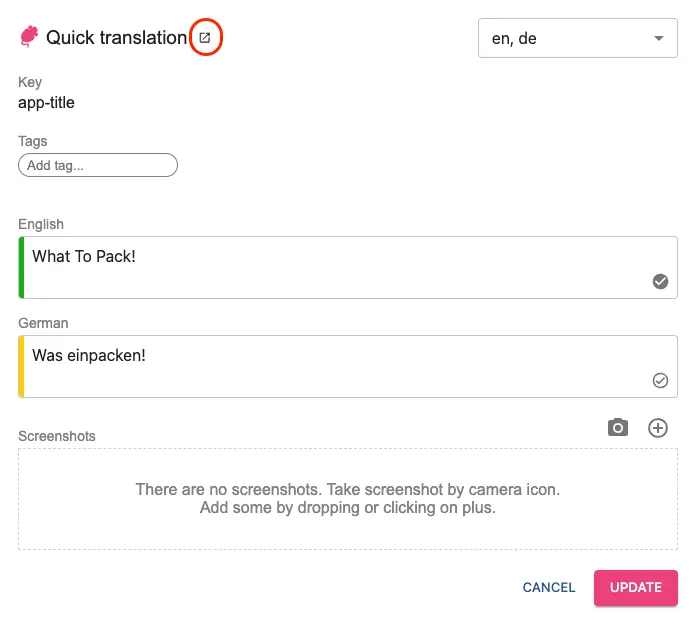
- Click on it to open "Quick translation" dialog
- You can edit translations (changes will get stored to Tolgee platform)
NOTE: If you use Tolgee without any integration, make sure you call
runmethod.
One-click screenshots
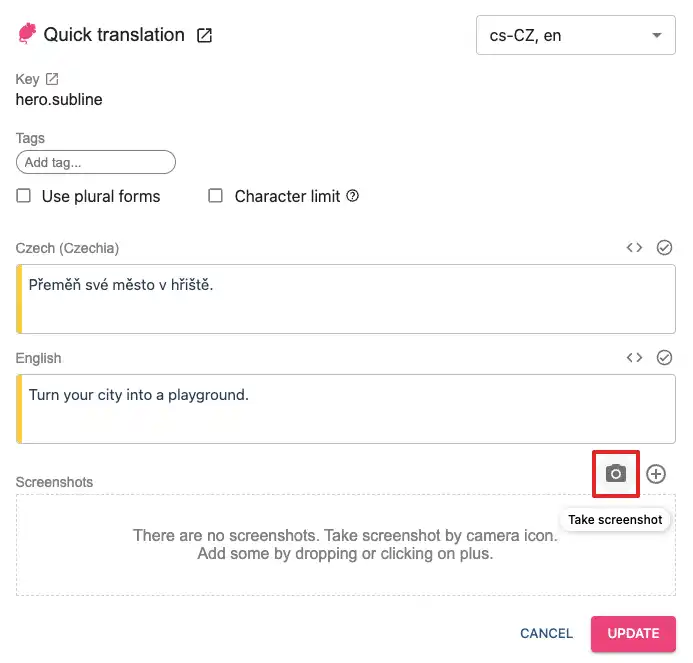
To generate screenshots automatically, you have to have installed Tolgee Tools extension for Google Chrome or add-on for Mozilla Firefox. With this tool, you can generate screenshots by clicking camera icon in Tolgee UI translation dialog.
DevTools are automatically omitted in production builds (based on NODE_ENV variable).
In-context on production
If you want to enable in-context on production build, there are two options:
1. Tolgee Chrome/Firefox plugin
The Tolgee Tools extension for Google Chrome or Mozilla Firefox turns in-context translating on for a production site. The page itself ships no credential. The extension gives the SDK a credential in one of two ways. The SDK then switches to development mode, and the extension loads the in-context editor for you.
Your apiKey should stay private and never be included in Tolgee configuration on production.
- Local development: You can pass apiKey directly in your Tolgee configuration.
- Production: Sign in with your Tolgee account in the Tolgee Tools extension, or apply an API key there.
Sign in with your Tolgee account
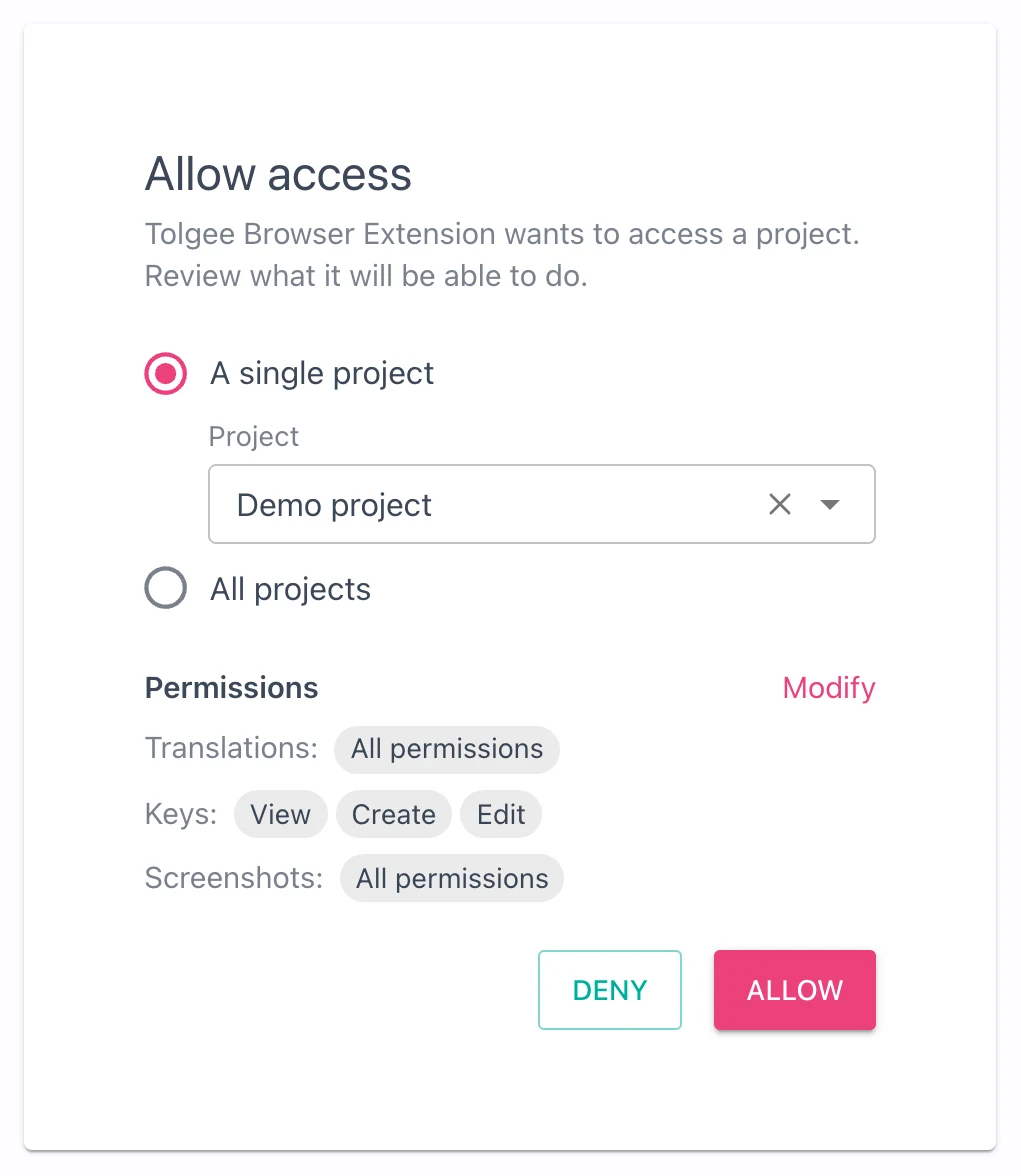
This is the recommended way. The user signs in with their Tolgee account, Tolgee shows a consent screen, and the extension keeps a short-lived token. The page never sees it.
-
Install Tolgee Tools
-
Go to the production version of your website
-
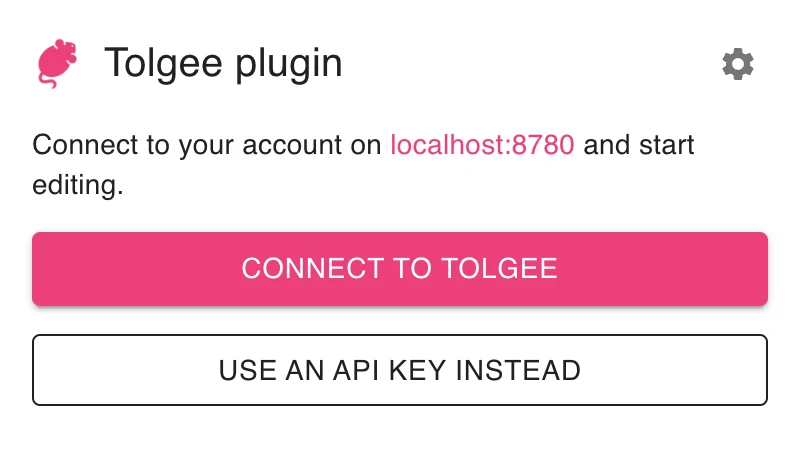
Click on Tolgee Tools extension and choose Connect to Tolgee
-
Approve the access on the Tolgee consent screen
-
In-context translating should work
What your site has to provide:
projectIdin the Tolgee configuration. The sign-in is bound to one project, and the extension reads which one from the page. See theprojectIdoption.@tolgee/web7.2.0 or newer. On an older SDK the extension asks for an update and offers the API key way instead.apiUrlin the configuration if you use a self-hosted Tolgee. Otherwise the user fills it in the extension.
How it works: the extension holds the token in its own service worker. The SDK sends every Tolgee API request to the extension, which adds the token, performs the request and returns the response. Screenshots are captured and uploaded by the extension too. A page can only reach the project it declares, on the server the user signed in to. The sign-in stays valid until the user signs out in the extension, or until it goes 30 days without use.
If the user has no edit rights on the declared project, the consent screen says so and in-context editing does not work on that site for that account. The token still cannot do more than the user is allowed to do.
Apply an API key
The older way still works. Click on Tolgee Tools extension and apply a Project API Key. With an SDK that supports the sign-in, the key stays in the extension as well, and requests go through it the same way. On an older SDK the key is written into the page's session storage and the page sends its own requests with it.
You can also check Step-by-step tutorial
A few notes about Tolgee Tools plugin
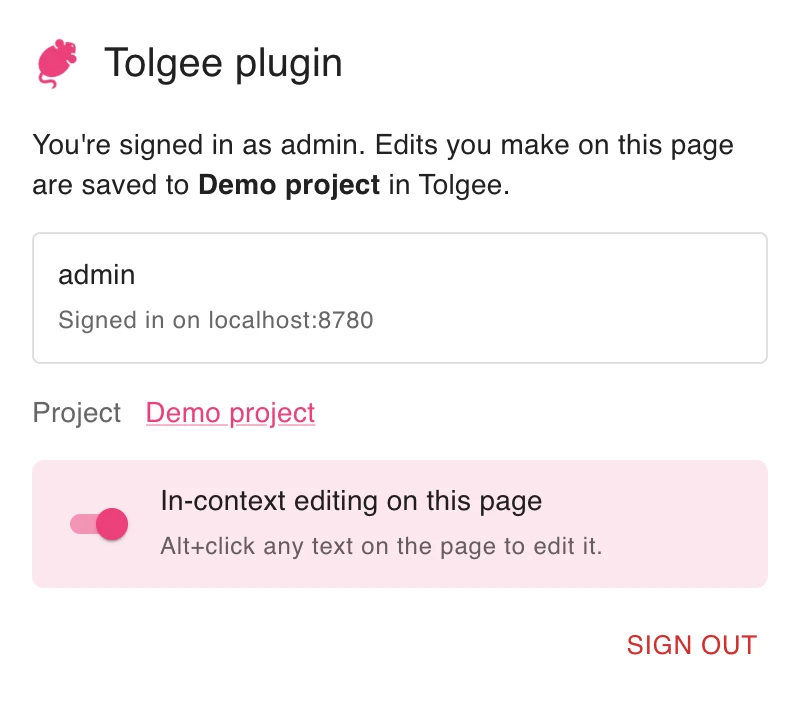
- The in-context switch in the popup only turns alt+click editing on or off for the current page. It does not end the sign-in. Use Sign out for that, see how to end the access.
- Plugin will supply
apiUrlfrom Tolgee configuration if it's present (if not you can fill it manually). - Plugin changes its icon to pink if Tolgee is present on the page or if credentials are set.
2. Using InContextTools instead of DevTools
DevTools are automatically omitted in production build (based on NODE_ENV variable), if you want to enable In-context unconditionally, you can use InContextTools (from @tolgee/web/tools package).
Note that InContextTools will significantly increase your bundle size, so we recommend using dynamic import and only including them when needed.
In-context on production should be always behind some authentication or in a private network. Make sure you are not exposing your credentials publicly.
// initialize tolgee without DevTools
const tolgee = Tolgee()
  .use(FormatSimple())
  .init({
    ...
  });

// include in-context tools only if needed
if (shouldIncludeInContextTools) {
  import('@tolgee/web/tools').then((module) => {
    tolgee.addPlugin(module.InContextTools())
  })
}
Using parts of InContextTools functionality
InContextTools (or DevTools in development) are a combination of multiple plugins, which you can include independently, check InContextTools documentation for more info.
Modals, popovers and other focus-stealing elements
Some elements like modals or popovers can steal focus from the Tolgee dev tools, so you can't type in the translation input fields.
Fortunately, you can still use the dev tools by opening them in a separate popup window by clicking the icon next to the Quick translation dialog title.
Your browser might block the popup, so you have to allow it.