Export Translation Files
Translations can be exported from Tolgee. You can currently export translations in many different formats, and you can also export only specific translations, e.g., only the ones that are not translated yet.
Export translations from the Tolgee dashboard
To export translations, open your project and select Export in the sidebar.
At the top of the export page, choose the Languages you want to export (all languages are selected by default) and the Format of the exported files. Then click Export and the file is downloaded. When you export more than one file, for example several languages, you get a zip archive.
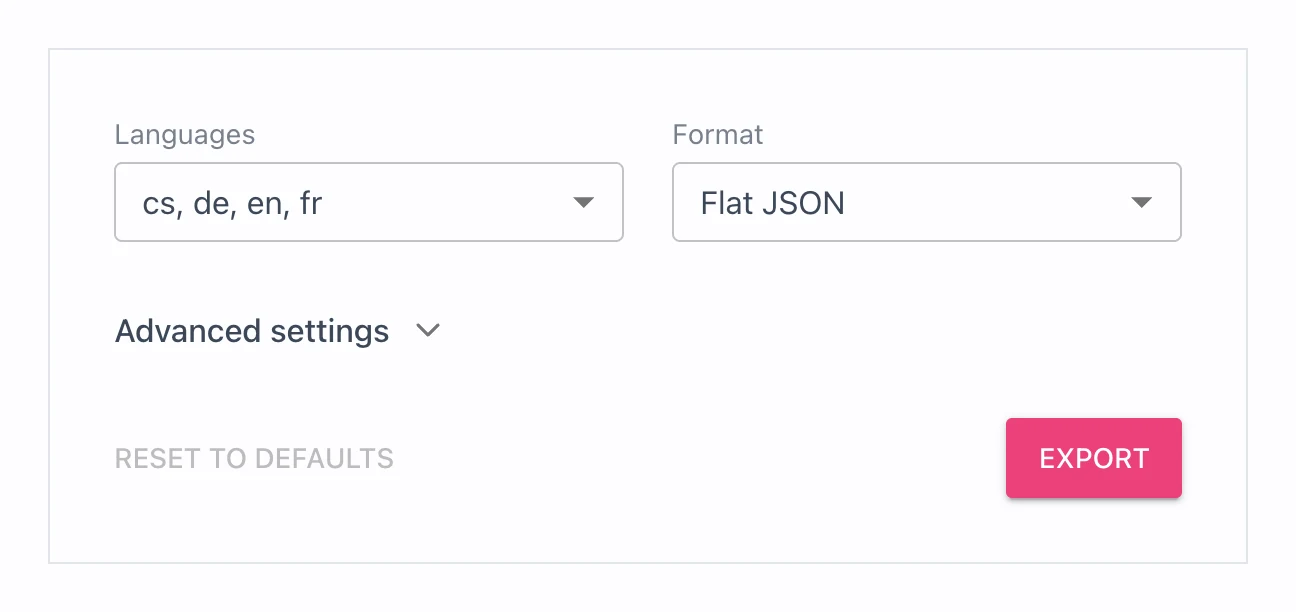
Everything else lives in the Advanced settings section, which is collapsed by default. You don't need to open it for a typical export. When any advanced setting differs from the defaults, for example because your last export used a tag filter, the section stays open and its chevron is hidden, so you always see what filters your export. Once all advanced settings are back at their defaults, the chevron comes back and you can collapse the section again.
Configure advanced settings
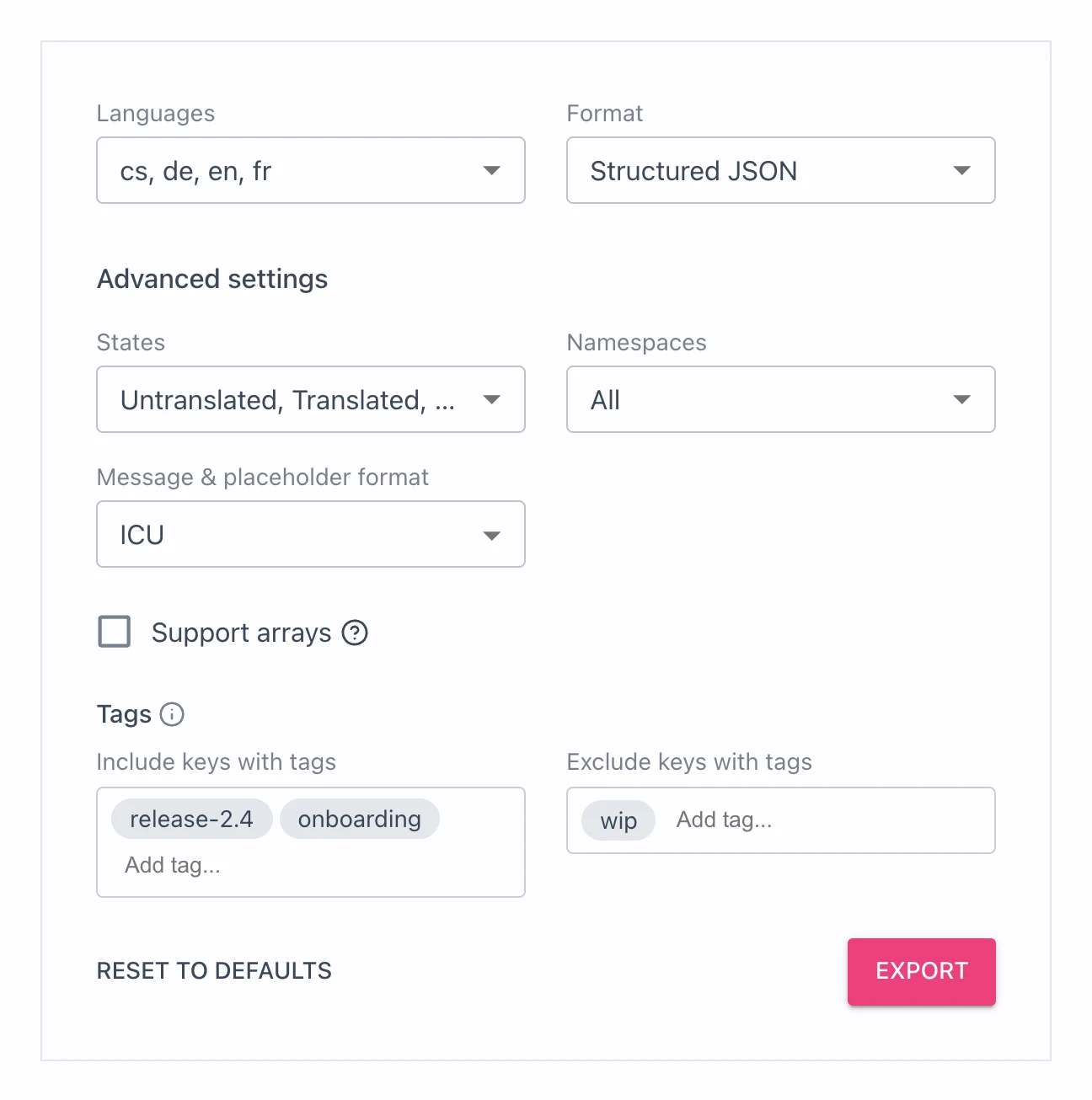
Click Advanced settings (or the chevron next to it) to expand the section. It contains these options:
Statesselects which translation states are exported. All states (Untranslated,TranslatedandReviewed) are selected by default. UnselectUntranslatedif you only want strings that already have a translation. At least one state must be selected, otherwise the section stays open with an error and theExportbutton is disabled.Namespacesselects which namespaces are exported. All namespaces are exported by default. This option is only shown when namespaces are enabled for the project.Message & placeholder formatselects the syntax used for placeholders and plurals in the exported strings. It is only shown for formats that support more than one syntax.- Format specific options such as
Support arraysorEscape HTMLare only shown for formats that have them. Include keys with tagsandExclude keys with tagslimit the export to keys with specific tags. See Export only keys with specific tags.
Export only keys with specific tags
Imagine you are preparing release 2.4 of your mobile app. Keys for the release are tagged release-2.4, and some keys are still marked wip because the copy is not final. Instead of exporting everything and cleaning up the files by hand, add release-2.4 to Include keys with tags and wip to Exclude keys with tags. The exported files then contain only the release strings, without the unfinished ones.
The two fields work like this:
Include keys with tagsexports only keys that have at least one of the listed tags. Withrelease-2.4andonboarding, a key tagged with either of them is exported.Exclude keys with tagsskips every key that has any of the listed tags. A key is exported only when it has none of them.- When you fill in both fields, a key must match the include list and must not match the exclude list.
- Leave both fields empty to export all keys.
If you are not sure how the fields work, hover the info icon next to Tags for a short explanation of wildcards.
Start typing in a field to see matching tags that already exist in the project, and pick one from the list. The fields only offer existing tags, so a typo can't silently produce an empty export. A tag you already added to one field is not offered in the other, because a key can't be both included and excluded.
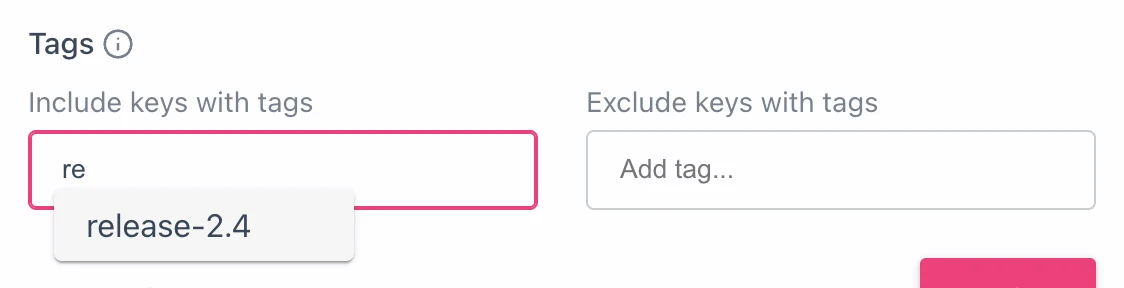
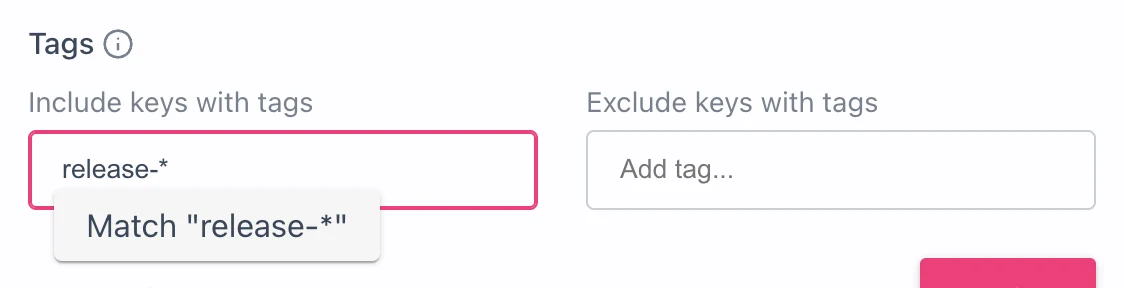
To match a whole group of tags, use * as a wildcard. When the text you type contains *, the list offers a Match "..." option. For example, release-* matches release-2.4, release-2.5 and any release tag you add in the future, which is handy for a content delivery configuration or a CI job that should not need updating every release.
If you want to pick exactly which keys to export, use Batch operations and export from there.
Export translations via CLI
You can also export translations via Tolgee CLI. To do so, you need to have the Tolgee CLI installed. You can find the installation instructions here.
Then you can use the tolgee pull command to export translations.
The command exports strings from the platform, and saves them in a folder of your choice. You can use this to download strings from Tolgee before bundling your app for production.
Export translations via REST API
You can also export translations via REST API, e.g., via the curl utility:
curl https://app.tolgee.io/v2/projects/export -H "X-API-Key: <Your API key>" --output data.zip
To configure the result options, check the API documentation.
Examples
Disabling nesting in exported files
When exporting to .json, the data is structured to nested objects by default. So the output looks like this.
{
  "homepage": {
    "title": "Welcome!"
  }
}
To change this behavior, provide the structureDelimiter query parameter.
curl "https://app.tolgee.io/v2/projects/export?structureDelimiter=" -H "X-API-Key: <Your API key>" --output data.zip
When structureDelimiter is empty, nesting is disabled.
Exporting only specific namespaces
By default, all namespaces are exported. To export only some of them, provide filterNamespace parameter.
curl "https://app.tolgee.io/v2/projects/export?filterNamespace=ns-1&filterNamespace=ns-2" -H "X-API-Key: <Your API key>" --output data.zip
Exporting only keys with specific tags
To export only keys that have at least one of the given tags, provide the filterTagIn parameter. To skip keys that have any of the given tags, provide filterTagNotIn. Both parameters accept * as a wildcard and can be repeated.
curl "https://app.tolgee.io/v2/projects/export?filterTagIn=release-*&filterTagNotIn=wip" \
-H "X-API-Key: <Your API key>" --output data.zip
This exports keys tagged with any tag starting with release-, except keys tagged wip.
Including untranslated strings
By default, only non-empty values are exported. To export also null values, set filterState parameter.
curl "https://app.tolgee.io/v2/projects/export?filterState=UNTRANSLATED&filterState=TRANSLATED&filterState=REVIEWED" \
-H "X-API-Key: <Your API key>" --output data.zip
When branching is enabled, exported translations reflect the active branch. See Scope and Integrations for details.